Gunakan plugin audio favorit untuk audio gerejaUse your favourite audio plugins for church audio
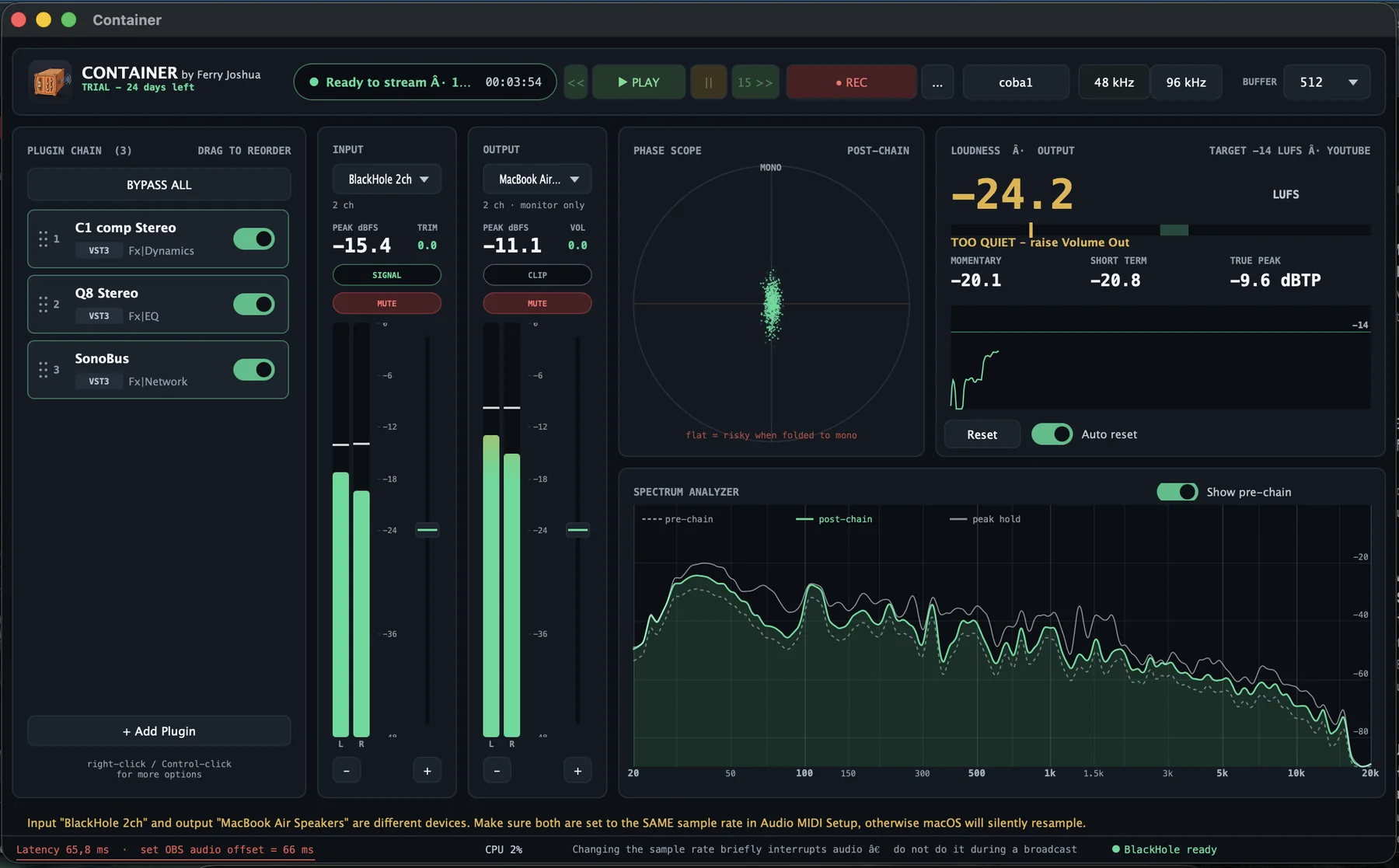
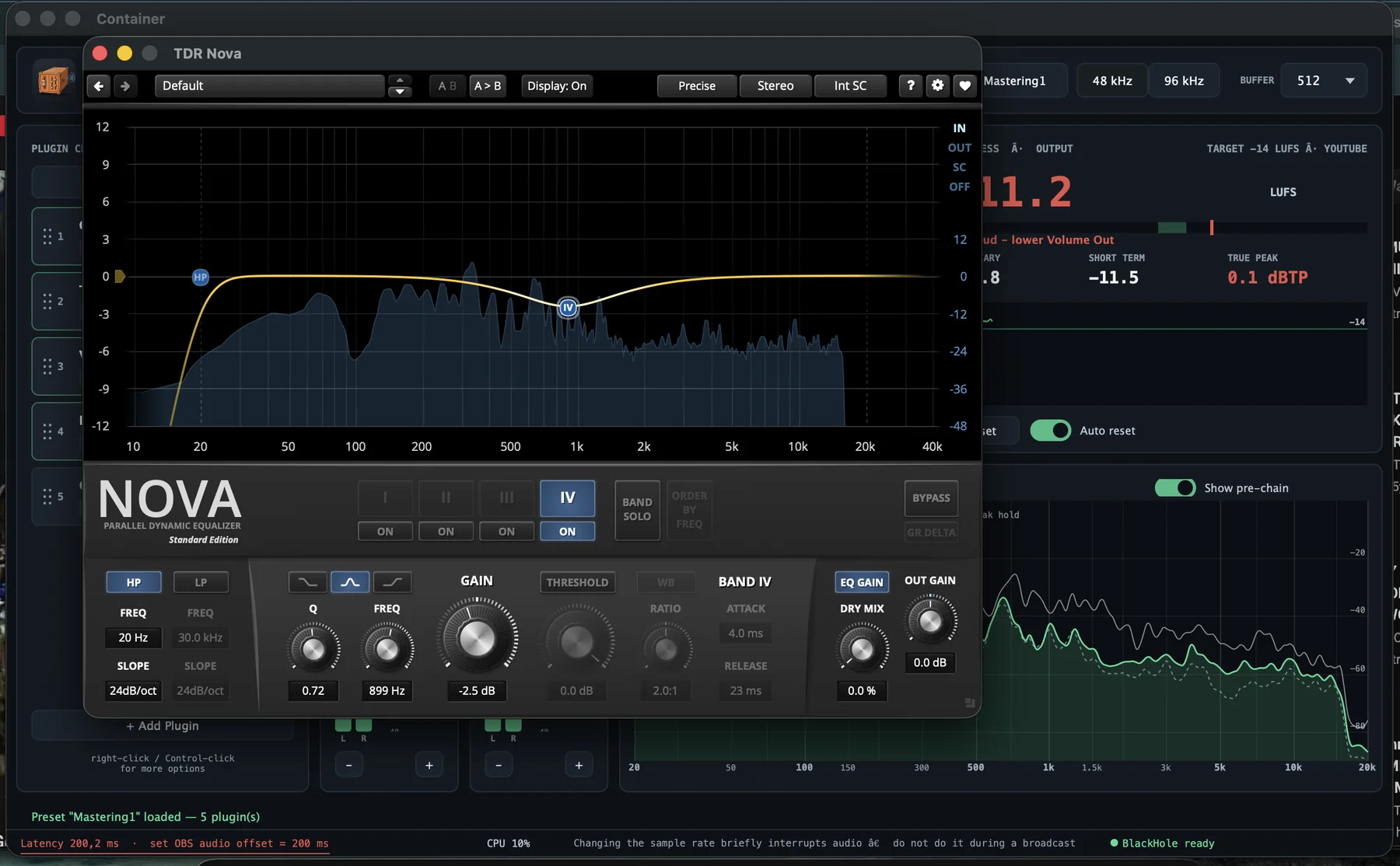
ContainR adalah plugin host, yaitu aplikasi untuk menjalankan plugin audio. Anda dapat menggunakan plugin favorit yang kompatibel, lalu menyusunnya sesuai kebutuhan di dalam rak plugin ContainR.ContainR is a plugin host, an application that runs audio plugins. You can use your favourite compatible plugins and arrange them as needed in ContainR's plugin rack.
ContainR tidak menyertakan plugin bawaan. Dengan begitu, Anda dapat tetap menggunakan plugin pilihan yang sudah biasa Anda gunakan.ContainR does not include built-in plugins. That way, you keep using the plugins you already know.
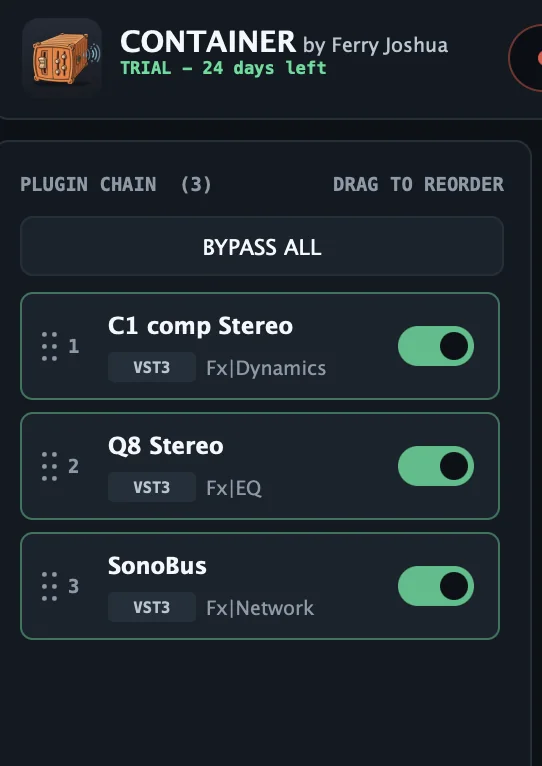
Susun rak plugin sesuai kebutuhanArrange your plugin rack your way
Atur urutan plugin dengan drag, bypass plugin satu per satu atau semuanya sekaligus dengan Bypass All, lalu simpan dan muat preset rak.Reorder plugins by dragging, bypass them one by one or all at once with Bypass All, then save and load rack presets.
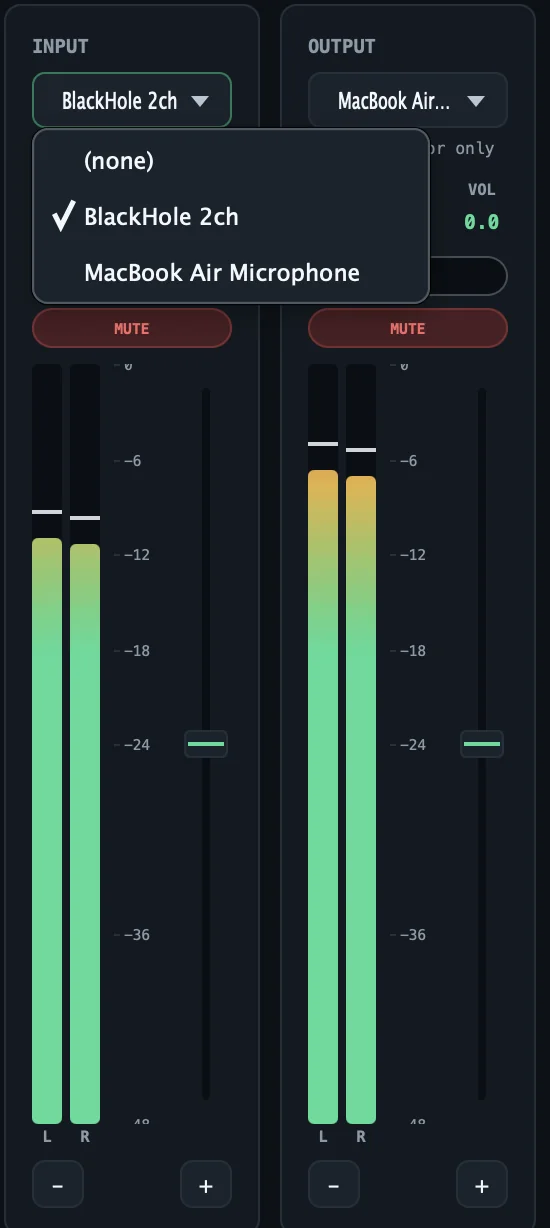
Pilih perangkat dan pantau sinyalChoose devices and watch the signal
Pilih perangkat input dan output langsung dari panel. Meter L/R menampilkan level puncak dalam dBFS, lengkap dengan indikator sinyal dan clipping. Atur Trim di input dan Volume di output dengan fader atau tombol − / +. Gunakan MUTE dengan ramp untuk menghindari bunyi klik.Pick input and output devices right from the panel. The L/R meters show peak level in dBFS, with signal and clipping indicators. Set input Trim and output Volume with the fader or the − / + buttons. Use MUTE with a ramp to avoid clicks.
Pantau loudness, fase, dan frekuensi untuk mastering live streamingWatch loudness, phase and frequency for live streaming mastering
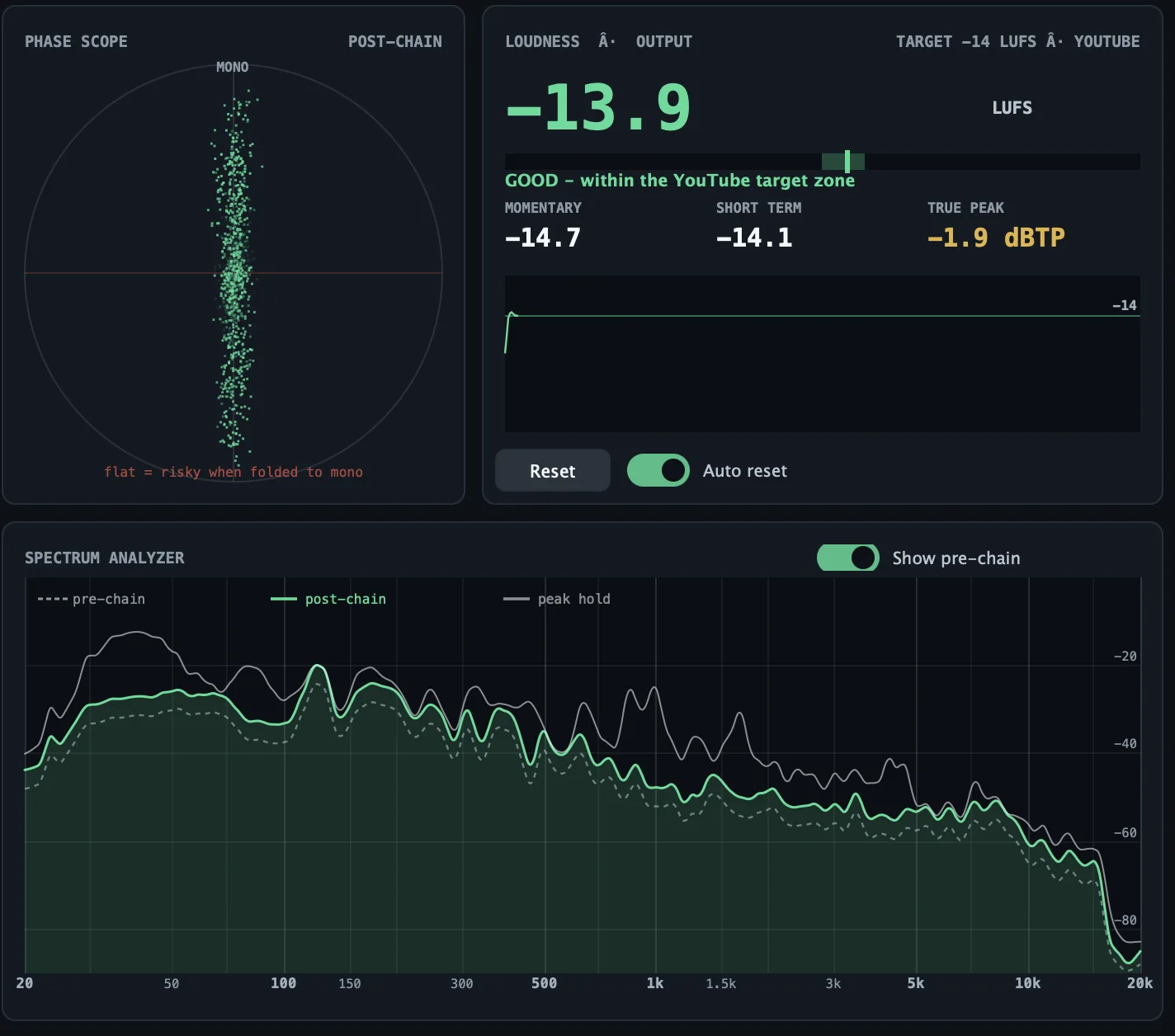
Phase Scope
Lebar stereo dan kecocokan mono setelah rantai plugin. Bentuk yang melebar datar berisiko saat audio dijadikan mono.Stereo width and mono compatibility after the plugin chain. A wide, flat shape is risky when the audio is folded to mono.
LUFS Meter
Loudness output terhadap target −14 LUFS YouTube, dengan Momentary, Short Term, True Peak, dan grafik riwayat. Status GOOD, TOO QUIET, atau TOO LOUD memberi tahu kapan Volume Out perlu diubah.Output loudness against the YouTube −14 LUFS target, with Momentary, Short Term, True Peak and a history graph. The GOOD, TOO QUIET or TOO LOUD status tells you when to change Volume Out.
Spectrum Analyzer
Sebaran frekuensi sebelum (pre-chain) dan sesudah (post-chain) plugin, ditambah peak hold, untuk melihat hasil EQ dan kompresor.Frequency spread before (pre-chain) and after (post-chain) the plugins, plus peak hold, to see what your EQ and compressor do.
Sound live streaming gereja yang rapi di YouTubeClean church live streaming sound on YouTube
Banyak gereja menyiarkan ibadah lewat YouTube gereja, tetapi suara di streaming sering terlalu pelan, terlalu keras, atau berbeda dari yang terdengar di ruang ibadah. ContainR membantu Anda mengolah audio live streaming dari mixer dengan rantai plugin pilihan Anda, sambil memantau loudness terhadap target −14 LUFS YouTube.Many churches broadcast worship on YouTube, but the stream sound is often too quiet, too loud, or different from what you hear in the sanctuary. ContainR helps you process live streaming audio from the mixer with the plugin chain you choose, while watching loudness against the YouTube −14 LUFS target.
Baca panduan: cara mengatur audio live streaming gereja ke YouTube →
Baca panduan: mastering live streaming audio gereja →
Mastering live streamingLive streaming mastering
Jalankan plugin EQ, kompresor, dan limiter milik Anda secara real time pada audio siaran, lalu nilai hasilnya lewat LUFS, True Peak, Phase Scope, dan Spectrum Analyzer.Run your own EQ, compressor and limiter plugins in real time on the broadcast audio, then judge the result with LUFS, True Peak, Phase Scope and Spectrum Analyzer.
Sound system gerejaChurch sound system
Ambil sinyal dari mixer sound system gereja dan olah khusus untuk siaran. Input (none) dijamin sunyi, aman untuk sound system.Take the signal from the church sound system mixer and process it specifically for the broadcast. Input (none) is guaranteed silent, safe for the sound system.
YouTube gerejaChurch YouTube stream
Meter LUFS membandingkan output dengan target −14 LUFS YouTube. Status GOOD, TOO QUIET, atau TOO LOUD memberi tahu kapan Volume Out perlu diubah.The LUFS meter compares output with the YouTube −14 LUFS target. The GOOD, TOO QUIET or TOO LOUD status tells you when to change Volume Out.
Siapkan setting sebelum ibadah dimulaiPrepare your settings before the service starts
Sering kali, pengaturan plugin baru terasa kurang pas ketika ibadah atau latihan sedang berlangsung. Padahal, momen itu sulit diulang untuk mencoba pengaturan lain.Often, a new plugin setting feels slightly off while the service or rehearsal is already running. And that moment is hard to repeat to try another setting.
Dengan fitur REC dan PLAY, Anda dapat merekam sinyal audio mentah saat latihan, lalu memutarnya kembali setelah latihan. Rekaman tersebut akan melewati rangkaian plugin yang sama seperti saat digunakan secara live. Anda bisa mencoba berbagai pengaturan dengan materi suara yang sama, membandingkan hasilnya, lalu menyimpan preset yang sudah sesuai.With REC and PLAY, you can record the raw audio signal during rehearsal, then play it back afterwards. The recording passes through the same plugin chain as in live use. You can try different settings on the same material, compare the results, then save the preset that fits.
Dengan cara ini, setting suara dapat dipersiapkan lebih leluasa sebelum ibadah atau streaming dimulai.This way, your sound settings can be prepared more freely before the service or stream begins.

Kirim audio streaming antar dua komputer secara digitalSend streaming audio between two computers digitally
ContainR memiliki SonoBus bawaan untuk mengirim audio dari satu komputer ke komputer lain melalui kabel LAN. Anda tidak perlu menambahkan soundcard khusus untuk menghubungkan keduanya.ContainR includes SonoBus to send audio from one computer to another over a LAN cable. You do not need an extra sound card to connect the two.
Sebagai contoh, ContainR dipasang di komputer A untuk menerima dan memproses suara dari mixer. Audio kemudian dikirim secara digital melalui LAN ke komputer B, yang menjalankan OBS atau aplikasi streamer lainnya. Karena sinyal dikirim secara digital, kualitas audio tetap terjaga selama proses pengiriman.For example, ContainR is installed on computer A to receive and process sound from the mixer. The audio is then sent digitally over the LAN to computer B, which runs OBS or other streaming software. Because the signal is sent digitally, audio quality is preserved during transmission.
Fitur yang membantu pekerjaan operatorFeatures that help the operator
Rak plugin yang fleksibelFlexible plugin rack
Susun dan ubah urutan plugin, bypass plugin satu per satu, serta simpan dan muat preset rak.Arrange and reorder plugins, bypass plugins one by one, and save and load rack presets.
Meter dan indikator yang informatifInformative meters and indicators
Pantau level input dan output, LUFS, clipping, sinyal, serta latency.Monitor input and output levels, LUFS, clipping, signal and latency.
Mute yang lebih halusSmoother mute
Mute input dan output dengan ramp untuk mengurangi bunyi klik.Mute input and output with a ramp to reduce clicks.
Pengaturan perangkat audio yang praktisPractical audio device settings
Perangkat yang terakhir digunakan disimpan dan dipulihkan saat aplikasi dibuka.The last-used devices are saved and restored when the app opens.
Record/Play untuk setting optimal sebelum live streamingRecord/Play for the best settings before live streaming
Setting bisa lebih santai karena materi direkam lalu diputar ulang setelah sesi latihan untuk mendapatkan setting terbaik.Set up at ease: record the material, then play it back after rehearsal to find the best settings.
Pilihan alur kerja streamingStreaming workflow options
Gunakan Application Audio Capture di OBS atau aplikasi streamer lainnya, atau virtual cable seperti VB-Cable di Windows dan BlackHole di macOS.Use Application Audio Capture in OBS or other streaming software, or a virtual cable such as VB-Cable on Windows and BlackHole on macOS.
Tanpa perlu WSG CardNo WSG card needed
Aplikasi berjalan secara native di komputer, tanpa perlu WSG Card untuk menjalankan plugin Waves. Cukup soundcard yang sudah ada.Runs natively on your computer, with no WSG card needed to run Waves plugins. Your existing sound card is enough.
Saat plugin di-bypass, ContainR mempertahankan sinyal tanpa pemrosesan plugin. Anda dapat mengaktifkan pemrosesan sesuai kebutuhan.When a plugin is bypassed, ContainR keeps the signal without plugin processing. You can enable processing as needed.
Pertanyaan umum tentang audio live streaming gerejaFrequently asked questions about church live streaming audio
Apa itu ContainR?What is ContainR?
ContainR adalah aplikasi standalone untuk Windows dan macOS yang menjalankan plugin audio VST3. Gereja memakainya untuk mengolah audio ibadah sebelum dikirim ke OBS atau aplikasi streaming lain.ContainR is a standalone app for Windows and macOS that runs VST3 audio plugins. Churches use it to process worship audio before sending it to OBS or other streaming software.
Bagaimana agar audio live streaming gereja tidak terlalu pelan atau keras di YouTube?How do I keep church live streaming audio from being too quiet or too loud on YouTube?
Pantau LUFS Meter terhadap target −14 LUFS YouTube. Bila statusnya TOO QUIET atau TOO LOUD, ubah Volume Out sampai statusnya GOOD.Watch the LUFS Meter against the YouTube −14 LUFS target. If the status shows TOO QUIET or TOO LOUD, change Volume Out until it shows GOOD.
Apakah ContainR bisa dipakai untuk mastering live streaming?Can ContainR be used for live streaming mastering?
Bisa, dengan plugin milik Anda. ContainR menjalankan plugin EQ, kompresor, atau limiter VST3 favorit Anda secara real time pada audio siaran, lalu LUFS, True Peak, Phase Scope, dan Spectrum Analyzer membantu menilai hasilnya. ContainR tidak menyertakan plugin bawaan.Yes, with your own plugins. ContainR runs your favourite VST3 EQ, compressor or limiter plugins in real time on the broadcast audio, and the LUFS, True Peak, Phase Scope and Spectrum Analyzer help you judge the result. ContainR does not include built-in plugins.
Bagaimana mengirim audio dari ContainR ke OBS untuk YouTube gereja?How do I send audio from ContainR to OBS for my church's YouTube stream?
Gunakan Application Audio Capture di OBS, atau virtual cable seperti VB-Cable di Windows dan BlackHole di macOS. Jika memakai dua komputer, SonoBus bawaan mengirim audio digital lewat kabel LAN.Use Application Audio Capture in OBS, or a virtual cable such as VB-Cable on Windows and BlackHole on macOS. With two computers, the built-in SonoBus sends digital audio over a LAN cable.
Apakah perlu WSG Card atau soundcard khusus?Do I need a WSG card or a special sound card?
Tidak. ContainR berjalan native di komputer, jadi soundcard yang sudah ada cukup, termasuk untuk menjalankan plugin Waves.No. ContainR runs natively on your computer, so your existing sound card is enough, including for running Waves plugins.
Bagaimana menyiapkan setting suara sebelum ibadah dan live streaming?How do I prepare my sound settings before the service and live stream?
Rekam sinyal mentah saat latihan dengan REC, putar ulang dengan PLAY melalui rak plugin yang sama, bandingkan berbagai setting, lalu simpan preset terbaik sebelum ibadah atau live streaming.Record the raw signal during rehearsal with REC, play it back with PLAY through the same plugin rack, compare settings, then save the best preset before the service or live stream.
Apakah ContainR gratis?Is ContainR free?
ContainR memberi trial 30 hari dengan fitur penuh. Setelah itu lisensi berjalan dengan sistem donasi: Anda menentukan sendiri nominalnya (boleh berapa pun), memilih periode bulanan atau tahunan, dan memperpanjang di akhir setiap periode.ContainR includes a 30-day full-featured trial. After that, licensing works by donation: you choose any amount you wish, pick a monthly or yearly period, and renew at the end of each period.
Lebih leluasa menyiapkan suara. Lebih siap saat live.More room to prepare the sound. More ready when live.
Dirancang untuk alur kerja yang lebih sederhanaDesigned for a simpler workflow
ContainR adalah aplikasi standalone untuk Windows dan macOS yang mendukung plugin VST3. Anda bisa fokus mengatur alur suara tanpa harus bekerja dengan DAW yang kompleks.ContainR is a standalone application for Windows and macOS that supports VST3 plugins. You can focus on arranging the sound flow without working in a complex DAW.
Rekam saat latihan, evaluasi setelahnya, dan siapkan preset sebelum ibadah atau streaming berikutnya.Record during rehearsal, evaluate afterwards, and prepare presets before the next service or stream.
ContainR untuk MacContainR for Mac
Unduh untuk MacDownload for MacJika macOS memblokir saat pertama dibuka, buka System Settings → Privacy & Security lalu pilih Open Anyway.If macOS blocks the first launch, open System Settings → Privacy & Security and choose Open Anyway.
ContainR untuk WindowsContainR for Windows
Unduh untuk WindowsDownload for WindowsPasang VB-Cable sebagai perangkat output virtual. ContainR memandu Anda saat pertama kali.Install VB-Cable as the virtual output device. ContainR guides you the first time.